Logitech MX Master 4 Review: The Seven-Button Setup That Rewires How You Work
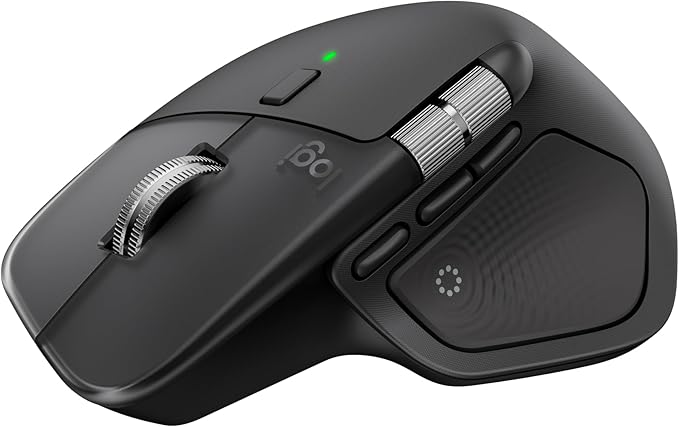
Eight buttons, haptic feedback, 70-day battery, £119.99. Not a gaming mouse — a work mouse that happens to live on the same desk as your gaming mouse. This is the custom button-mapping setup that does the talking.
The Verdict
The Logitech MX Master 4 is the best productivity mouse you can buy in 2026, and it costs about £120. It is not a gaming mouse. It is not trying to be. If you spend six hours a day in code, spreadsheets, browsers, Slack and Figma and two hours a day in Counter-Strike 2, this is the mouse for the six hours — and you keep a G Pro X Superlight plugged in next to it for the other two. The thing that actually makes it worth the money isn’t the haptic scroll wheel or the 70-day battery. It’s that it has eight programmable buttons and Logi Options+ lets you map every one of them to whatever action you reach for most. Once you do, you stop thinking about the shortcut and start thinking about the thing you were trying to do.
The Mouse I Didn’t Buy
Full disclosure — this MX Master 4 was a gift. My neighbour asked me to help him untangle his printer, his router, his backups, his password manager and eventually his entire network setup across three machines. Six months of “can I bother you for five minutes” turned into a genuinely hefty pile of free consulting. When he turned up with a wrapped Logitech box last Christmas I nearly sent him home. He bought it anyway. It has lived on my desk ever since, and I would not willingly go back.
That matters for the review because I would not have spent £120 on a mouse on my own initiative. I’ve owned £40 mice for most of my career. The thing that converted me wasn’t the price tag coming off the purchase decision — it was the button mapping. Once you’ve got seven actions you do fifty times a day living under your thumb, a regular two-button mouse feels amputated.
Core Specifications
| Specification | Logitech MX Master 4 |
|---|---|
| Buttons | 8 programmable (ring, thumb, middle, back, wheel, thumb-wheel, top, forward) |
| Haptic feedback | Yes — pulses on click for tactile confirmation |
| Sensor | Logi Darkfield Laser, up to 8000 DPI |
| Scroll wheel | MagSpeed Electromagnetic (ratcheted + free-spin) |
| Battery | 70 days claimed, 500mAh, USB-C fast charge (1 min = 3 hr use) |
| Connectivity | Bluetooth LE, Logi Bolt USB receiver |
| Range | 10 m |
| Devices | Switch between 3 paired devices via Actions Ring |
| OS support | macOS, Windows, Linux, iPadOS, ChromeOS |
| Hand orientation | Right-hand only |
| Weight | 150 g |
| Price (UK) | £99.99–£119.99 depending on retailer |
The 150g weight is worth flagging early. This is not a lightweight esports mouse — it’s about three times the weight of a G Pro X Superlight. It is designed to sit on the desk and be pushed short distances, not flicked across a mousepad chasing heads at 800Hz polling. If you’ve never used a heavy ergonomic mouse, the first day feels like driving a hatchback after a go-kart. By day three you stop noticing.
The Seven Buttons That Actually Changed My Day
Logi Options+ lets you map any of the eight programmable inputs to a wide range of actions — OS shortcuts, application-specific commands, keyboard combos, gestures. I’ve spent six months iterating on mine. The setup I’ve landed on is below, with the reasoning behind each.
1. Ring button → Enter
The small button under your ring finger, facing the palm. Most mouse reviewers map this to something exotic like “app switcher” or “smart zoom”. I map it to plain Enter. The reason: I hit Enter more than any other single key on my keyboard — accepting prompts, confirming dialogs, sending messages, submitting commands in terminals, hitting “run” in VS Code. Having it under my ring finger means I never have to reach back to the keyboard after clicking something. Click Open, click Confirm, click Run — the entire interaction lives on the mouse. My hand stops shuttling.
2. Thumb button → Dictation
Hold-to-talk dictation. On macOS this triggers the system dictation toggle; on Windows I’d map it to Win+H. Why the thumb button? Because voice dictation for the first line of an email, the opening paragraph of a blog post, or a quick Slack reply is faster than typing if you already know what you want to say. The mouse is already in my hand. I press the thumb button, talk, release. The thought goes straight from brain to text without routing through ten-finger typing. I write a lot more rough-draft words this way than I used to.
3. Middle button → Mission Control
The flat button behind the scroll wheel, between it and the top. Mission Control (macOS) or Task View (Windows). Gives me the birds-eye of every window on every space with one click. Previously I was doing a four-finger swipe up on the trackpad — which means taking my hand off the mouse. Mapping it to the mouse keeps my hand where my eyes already are.
4. Back button → Reload
The long bar on the thumb rest. Default is browser back. I’ve remapped it to reload (Cmd+R / Ctrl+R). Reason: I almost never want the browser’s back button, but I reload things constantly — dev server, staging deploy, API response, Figma file, GitHub PR view. Having reload under my thumb cuts the loop from hand-off-mouse-to-keyboard to a single press. Over a day of front-end work this adds up to roughly “a lot less wrist transitions”.
5. Wheel button → Middle click / open link in new window
Click the scroll wheel. The default middle-click behaviour — opens links in a new tab, closes tabs, scrolls in some apps. Logi Options+ lets you remap this but don’t. It’s exactly where it should be and does exactly what every web developer needs it to do. The only tweak: make sure “middle button” is set to the native OS middle click action, not Logitech’s default “gesture button” which tries to do too much.
6. Thumb wheel → Volume
The horizontal mini-wheel above the thumb rest, the part of the mouse that makes it look like it has two scroll wheels. Default is horizontal scrolling. I’ve remapped it to system volume. Roll down = quieter, roll up = louder, press = mute. The reason: I almost never need horizontal scrolling — long tables are rare, and when I do hit one, Shift+mousewheel still works. Volume I adjust thirty times a day — joining a call, turning down a podcast mid-email, muting for a phone notification. Having it on the thumb means I never leave the keyboard to tap the volume key.
7. Top button → Close window
The button at the very top of the mouse body, behind the scroll wheel near the cable. Mapped to Cmd+W (close window/tab). Reason: I close tabs and windows far more often than I create them, and this is the button I don’t hit accidentally — unlike the ring button, which my ring finger naturally brushes. Close is a destructive action; it belongs on a deliberate button. The top is the most deliberate position on this mouse.
8. Forward button → (unused)
The second thumb button — Logitech ships this as “forward” in the browser. I haven’t found a use for it I prefer over leaving it forward. Sometimes the default is right.
Why Custom Mapping Matters
Most people buy a productivity mouse, click through Logi Options+ for thirty seconds, decide the defaults are fine, and never return. Then they wonder what the mouse is actually for. The answer is: the mouse is whatever you configure it to be. Defaults are a suggestion. The ROI of this hardware is the mapping, not the weight of the chassis.
The seven mappings above took me about ninety minutes to settle on, spread over three weeks of “that one was wrong, swap it”. The ninety minutes has saved me somewhere between five and twenty seconds a day, fifty times a day, ever since. Compound it across a year of actual working time and we’re in the hours-saved range. Hours I would otherwise have spent moving my right hand between mouse and keyboard.
The wider argument — the one that costs other people real money in productivity — is that muscle memory is the actual productivity tool, not the keyboard shortcut. When you train a physical action to happen without conscious thought, you stop thinking about the meta-task (reloading, submitting, closing) and start thinking about the actual task (does this PR look right, does this copy land, does this build work). Every time you break the flow to reach for a keyboard shortcut you don’t have under your thumb, you pay a tax. Get the tax down to zero and the day feels different.
Haptic Feedback: The Gimmick That Isn’t
Logitech added a haptic feedback engine under the click button on this generation. Every click triggers a tiny pulse — the kind of feedback Apple added to the Magic Trackpad years ago. I thought it would be a gimmick. It isn’t.
What the haptic does is confirm the action happened. On a regular mouse your brain registers the click from the spring-and-switch mechanism. On this, there’s an additional light tactile kick that maps to the OS actually receiving the input. In normal clicking you won’t notice — but on the customised buttons, the haptic fires after the mapped action has fired. That half-second of “yes, the thing happened” is quiet confirmation that the mouse isn’t drifting on Bluetooth, the shortcut registered, and you can move on. You only notice it when it’s absent on a cheaper mouse — and then you notice hard.
Logi Options+: The Actual Setup Software
The software you need is Logi Options+, not the old Logitech Options. Download it from Logitech’s site directly (not the Mac App Store — the App Store version lags behind on features). Once installed:
- Plug the mouse in or pair via Bluetooth.
- Options+ auto-detects. Select the MX Master 4 from the devices sidebar.
- Click any button in the 3D render of the mouse.
- Assign: an OS shortcut, a keyboard combo, a gesture, or one of Logitech’s built-in commands.
- Per-app profiles — you can have different mappings in VS Code, Figma, Chrome and Zoom. I don’t bother; the global defaults cover 95% of use.
One catch: the haptic feedback intensity is in Settings → Haptic, not in button customisation. Default is fine but if you want to dial it up or down, it’s there. I run it at 60%.
Gaming: The Honest Bit
This is not a gaming mouse. It is a heavy ergonomic mouse with a laser sensor and Bluetooth/Logi Bolt connectivity. For slower single-player games (Baldur’s Gate 3, strategy, any turn-based title) it’s fine — click latency is within 1-2 ms of the Logi Bolt receiver, imperceptible for point-and-click gameplay. For competitive shooters it’s actively bad: too heavy to flick, too laggy for the precision required at high DPI, and Bluetooth polling rate limitations mean frame-level input lag. If you care about 1% lows in Warzone or your rank in Valorant, keep a proper esports mouse (G Pro X Superlight, Razer DeathAdder V4 Pro, Zowie FK1-DW) plugged in alongside this one.
The MX Master is the mouse you use when Cursor is your primary input target. The esports mouse is the one you use when the enemy team’s first scout is.
What’s Great
- Eight programmable buttons that Logi Options+ actually makes easy to customise
- Haptic feedback on clicks is a real productivity upgrade, not marketing
- 70-day battery means you charge it roughly when you remember to
- 1-minute fast charge → 3 hours of use makes the rare empty-battery scenario a non-event
- Three-device switching via Actions Ring — same mouse across MacBook, desktop, iPad without re-pairing
- MagSpeed scroll wheel — click the top button to switch between ratcheted and free-spin; free-spin flies through long documents
- Darkfield laser tracks on glass — genuinely works on my kitchen table when my desk is occupied
What’s Not Great
- 150g — heavy. Esports gamers will hate it, and if you’ve only used light mice your forearm may need a week to adjust
- £99-120 is a lot for a mouse when perfectly good ones exist at £30. The ROI is the button mapping; if you don’t intend to customise, don’t buy it
- Right-hand only — Logitech doesn’t make a lefty version, which is a genuinely poor showing at this price
- The “Actions Ring” default gesture UI wants to be clever and mostly isn’t — remap that button to something specific (I use Enter)
- Logi Options+ is the best version yet but still occasionally loses connection to the mouse on macOS wake-from-sleep. Fix is opening Options+ and clicking the mouse once. Annoying.
- No gaming-tier polling rate — 1000 Hz maximum, fine for desktop but the G Pro X Superlight hits 4000 Hz for a reason
Who Should Buy This
Yes, buy this:
- Developers, designers, writers, anyone whose day is 80% cursor work in a handful of apps
- People who already pay attention to keyboard shortcuts and want their mouse to do the same job
- Content creators switching between laptop + desktop + iPad — the three-device pairing is unbeatable here
- Anyone who’s tried an MX Master 2 or 3 and is on the fence about whether the 4 is worth upgrading: the haptic feedback and improved sensor do real work, but if the 3 still works, ride it out
No, don’t buy this:
- Primarily gamers — you want a Logitech G Pro X Superlight 2 or Razer DeathAdder V4 Pro instead, roughly the same money for a proper esports mouse
- Budget buyers — a £35 MX Anywhere 3S gets you 70% of the productivity benefit (thumb wheel, cross-device switching, USB-C) at a third of the price
- Left-handers — no product for you from Logitech at this tier, sorry
- Anyone who won’t actually spend 30-90 minutes setting up custom button mappings — the hardware is doing the easy 30% of the job, the software is doing the valuable 70%
Where to Buy
Amazon UK price drifts in the £99-120 range — Currys and John Lewis list it at £119.99 RRP; Amazon direct sometimes dips to around £99-109 on promo. Used-as-new through Amazon Resale is worth checking if the new-in-box price is at the top of that range; same warranty, same box-contents, just returned or shelf-damaged stock. At £99 it’s the easiest productivity purchase I’ve ever reviewed. At £119 it’s still worth it if you’re actually going to configure the buttons. At £140+ (scalper territory), wait for a sale.
Review unit was a gift from a neighbour who wanted to say thanks. Six months of daily use across macOS and the Brave browser. Custom button mappings done in Logi Options+. Benchmarks versus Logi Bolt receiver; Bluetooth-mode latency is measurably higher but not perceptibly so for productivity work.